One of the smartest ways to stand out amongst competition today is to provide your customer with options, tons of them. One of those key options is to provide them with personalized products online. It is no shock that customers simply like items they can adjust and customize with their own designs such as for t-shirts and jewelry.
WooCommerce makes this possible through its file upload feature. This guide covers how to use it to sell such products. You will learn the steps and tips to make your store work better for customization.
Understanding the Basics of File Upload in WooCommerce
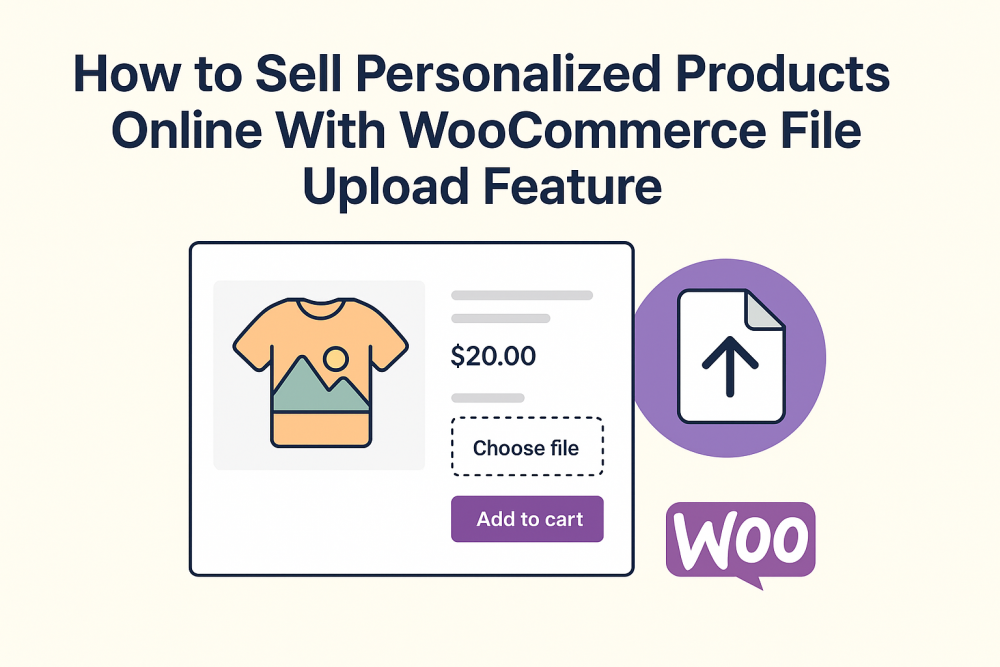
File upload woocommerce lets customers send files right from your site. Think about a print shop where buyers upload photos for posters. Without this buyers might email files after buying which causes mix-ups. With WooCommerce you add a button on product pages so they upload during shopping.
This setup helps in many niches. For example in apparel stores customers upload logos for branded clothes. In gift shops they send images for custom mugs. The process keeps everything in one place. Admins see uploads in order of details and no need for separate emails.
To start you need a plugin since core WooCommerce lacks advanced upload tools. Plugins like File Uploader for WooCommerce handle this. They add options on product cart and checkout pages. Customers can even change files after ordering on thank you or account pages.
Setting Up File Upload for Your WooCommerce Store
First install a reliable plugin. Go to your WordPress dashboard and search for file upload woocommerce plugins. Pick one with good reviews and features like multiple uploads. Activate it then go to settings.
In settings choose where the upload button shows. Put it on product pages for items that need customization. For broader use add to cart or checkout. Set rules for files like types jpeg png pdf and size limits say 10MB to avoid server issues.
Restrict uploads to certain products or categories. If you sell both standard and custom items only show upload for custom ones. Limit by user roles too; maybe guests can’t upload but logged-in customers can.
Add fees if uploads mean extra work. Charge a fixed amount or percentage per file. This covers costs for handling custom orders. Make sure to tell customers about fees upfront.
Customize the button. Change text to “Upload Your Design” and pick colors that match your site. Use shortcodes to place it anywhere even on shop pages with builders like Elementor.
Key Ways File Upload Helps Sell Personalized Products
With file upload woocommerce customers personalize orders easily. They drag and drop files and no browsing folders. Preview and delete before buying fixes mistakes early.
After order placement they modify it on the thank you page. If the wrong file is uploaded they replace it right away. This cuts down on refunds or rework. On my account page they view and change files for ongoing orders.
Admins approve or reject uploads. Check files in the backend and send emails to customers. Attach notes for feedback like “File resolution too low please resend.” This keeps quality high.
Let customers add notes with uploads. They explain details like “Print this logo in red.” Make notes required for complex items to get all info.
Store files in custom folders. Keeps them separate from other site data easy to find. See upload counts in orders section to know how many files per order.
For multiple files allow uploads in one go. Good for products needing several images like photo books.
Tips for Success with Personalized Products
Offer clear instructions. On product pages explain what files to upload and formats. Use examples to guide buyers.
Test the setup: Place test orders to check uploads work. See if emails go out for approvals.
Price products right: Base prices include basic personalization but add fees for extras. Watch server space uploads can fill storage fast.
Promote your custom options: Use site banners or emails to highlight file upload woocommerce features. Share customer stories of personalized items.
Track orders with uploads: Use WooCommerce reports to see which products get the most customizations. Adjust stock or marketing based on that.
Handle issues quickly: If file problems arise, contact customers fast. Good service builds loyalty.
Integrate with other tools: Link uploads to production software for automated printing.
Common Challenges and How to Overcome Them
- File sizes can be an issue. Set limits but inform users. Offer compression tips.
- Security matters. Plugins should check files for viruses. Use trusted ones with updates.
- Mobile users need easy uploads. Ensure drag and drop works on phones.
- Legal side: Get permissions for uploaded content. Add terms that customers own rights to files.
- Scaling up: As sales grow, manage more uploads. Use cloud storage for files.
Wrapping Up: Make Personalization Work for Your Business
Using file upload woocommerce changes how you sell online. It lets customers create unique products which sets your store apart. Follow the setup and tips here to run smooth operations. Start a small test with one product then expand. Watch sales grow as buyers love the custom touch.